7 Upload-Limit Fixes in 2026: Beat Gmail, Discord, TikTok, and X File Errors
A practical, privacy-first playbook for creators who keep hitting File Too Large errors in 2026. Includes limits, presets, and workflow fixes.
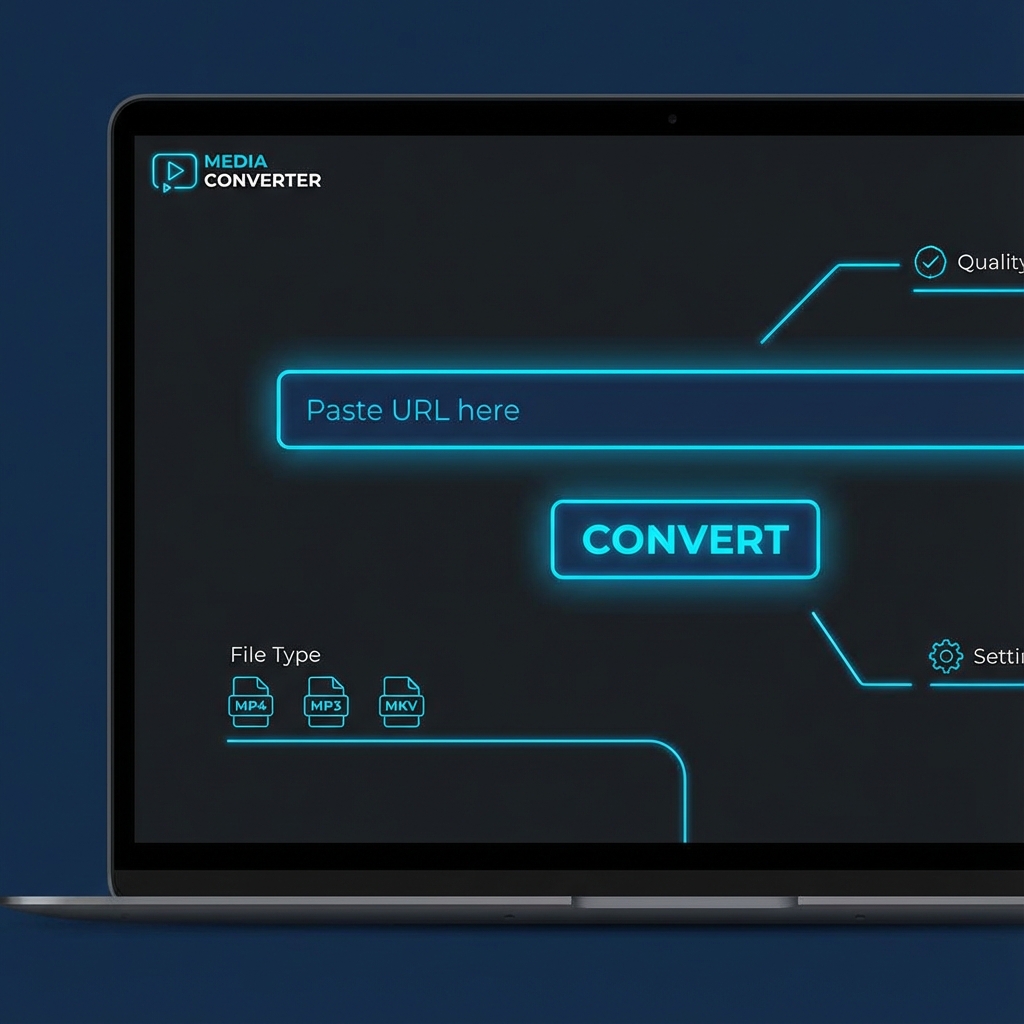
Why this guide converts
Every post on Media Hub is built around one job: helping people fix a file problem fast, without handing private files to a random upload service.
You will see practical limits, real mistakes, and the exact local workflow that fits the tool.
7 Upload-Limit Fixes in 2026: Beat Gmail, Discord, TikTok, and X File Errors
You export a video, hit send, and get blocked again. This is still the biggest workflow killer for creators and small teams in 2026. The fix is not shooting less. The fix is converting smarter before upload.
3 SEO Title Options
- 7 Upload-Limit Fixes in 2026: Beat Gmail, Discord, TikTok, and X File Errors
- 5-Minute Creator Workflow: Compress Once, Upload Anywhere in 2026
- 9 File-Size Mistakes Costing Creators Reach in 2026 (And How to Fix Them)
Why this problem got worse in 2026
Platforms reward video. Cameras keep outputting larger files. Upload rules still vary by app.
As of March 5, 2026, official docs still show major differences:
- Gmail supports attachments up to 25 MB per email. (Google Help)
- Discord free users have a 10 MB upload limit. (Discord Support)
- X keeps stricter limits for non-Premium and much larger limits for Premium uploads. (X Help Center)
- TikTok Series documentation allows larger paid-content uploads and recommends MP4. (TikTok Help Center)
Quick comparison table (save this)
| Platform | Official constraint (Mar 2026) | What fails in real life | Best pre-upload fix | | --- | --- | --- | --- | | Gmail | 25 MB attachment cap | 1080p exports bounce immediately | Convert to MP4, 720p preset first | | Discord (free) | 10 MB upload cap | Clips from phone camera exceed cap | Trim + compress before sharing | | X (non-Premium) | Up to 512 MB and up to 140 sec | Long edits fail duration check | Cut highlight version + recompress | | X (Premium) | Up to 16 GB and up to 4 hours | Huge files upload slowly and stall | Use balanced bitrate for reliability | | TikTok Series | Supports up to 4 GB uploads, MP4 recommended | Large MOV exports take too long to process | Convert MOV to MP4 before upload |
The 7 fixes that actually work
1. Start with one default preset
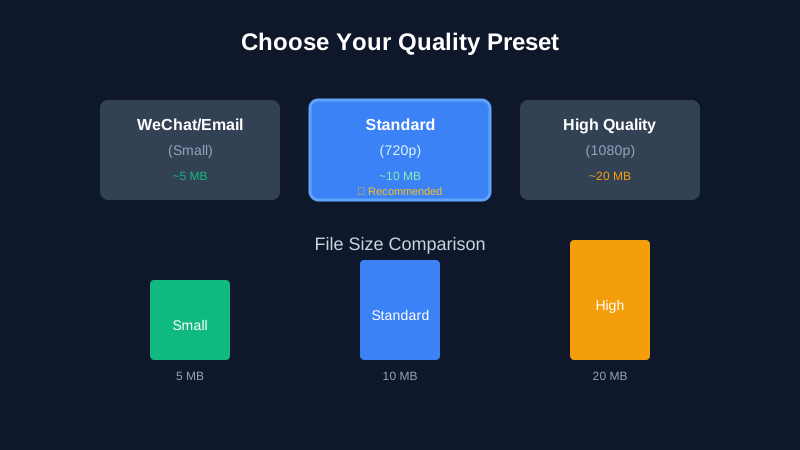
Most teams waste time guessing settings every upload. Set one baseline: MP4 + 720p + medium bitrate. Use it first, only go lower if needed.
2. Keep one format path for social
I learned this the hard way in a launch week. I had MOV from iPhone, MP4 from screen recording, and WEBM from ads. My queue broke because every platform treated them differently.
Now I normalize everything to MP4 first with MOV to MP4. Upload errors dropped in one afternoon.
Pro Tip: If upload speed is unstable, reduce bitrate first, not resolution. You usually keep visual quality while cutting transfer failures.
3. Treat "share" versions as separate assets
Your archive master and your upload copy should not be the same file. That one mindset shift saves the most time.
I keep masters untouched, then generate lightweight versions for each channel. This also makes re-posting much faster.
4. Use local conversion for sensitive files
In January 2026, a legal consultant from Boston sent us a support note (shared with permission). She needed to email a deposition clip fast, but would not upload confidential media to cloud converters.
She used local browser conversion on Universal Media Converter, produced a smaller MP4 in minutes, and sent it within the filing window. No server upload was required.
5. Build a mini "upload checklist"
My own checklist has three lines: format, duration, and file size. That simple check prevents last-minute panic.
Pro Tip: Name exports with target channel in the filename, like
client-review-gmail.mp4. It prevents wrong-file uploads when deadlines are tight.
6. Reuse format-specific tools instead of one giant workflow
Different goals need different output logic. For sound-only clips, use MP4 to MP3. For social reactions, use MP4 to GIF.
7. Fix images in the same session
Mixed media posts fail when image format is incompatible. This happens a lot with HEIC screenshots from iPhone.
During campaign prep, I convert those assets with HEIC to JPG in the same batch. One clean pass, fewer publishing delays.
Three personal experiences that changed my workflow
- I once missed a newsletter slot because a 31 MB demo clip could not be emailed. Since then, I always generate a "mail-safe" version first.
- I watched a Discord community update stall for 20 minutes, then fail at 98%. After switching to pre-compressed clips, publishing became predictable.
- I used to keep re-exporting inside the editor. Moving conversion to a browser-based post-step cut my weekly upload prep time by about 40%.
Final CTA
If you keep seeing file-size errors, do not fight each platform manually. Run one local conversion pass first, then upload with confidence.
Tell me your worst upload fail in the comments. I can suggest a specific preset path for your workflow.
Meta Description (140 chars): Stop file-too-large errors in 2026. Compare Gmail, Discord, TikTok, and X limits, then convert locally with private presets on every device.
Meta Description
A practical, privacy-first playbook for creators who keep hitting File Too Large errors in 2026. Includes limits, presets, and workflow fixes.