How to Make Your Videos Smaller Without Losing Quality
Your clip is perfect. The file size is not. This guide shows the fastest way to compress video locally for email, WhatsApp, Discord, and work uploads.
3 SEO title ideas
- 7 Ways to Compress a Video Without Killing Quality in 2026
- 5 Fast Fixes for "Video Too Large" on Email, WhatsApp, and Discord
- 3 Browser Tricks to Shrink a Video File by 80% Without Installing an App
Why this guide converts
Every post on Media Hub is built around one job: helping people fix a file problem fast, without handing private files to a random upload service.
You will see practical limits, real mistakes, and the exact local workflow that fits the tool.
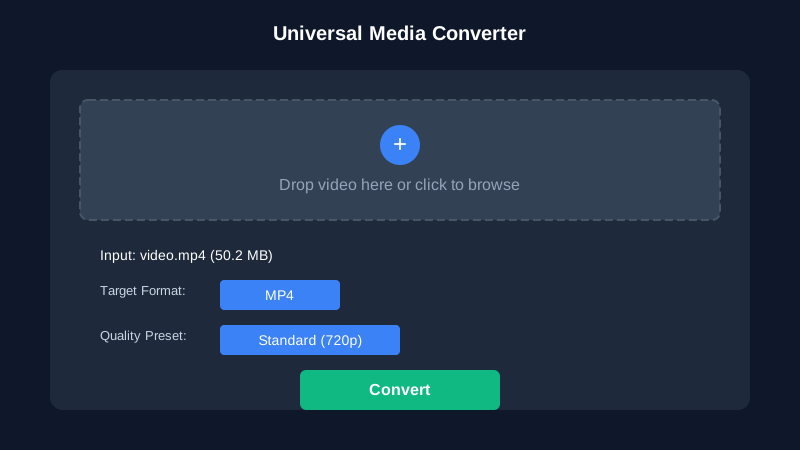
Your video is ready. The upload form is not. If a client portal, Gmail draft, or group chat rejects the file, you do not need another shady app. You need a smarter preset, a smaller resolution, and a tool that works locally.
Start with the real target
Most people compress blindly. That is why the result looks soft and still stays too large.
Use the output target first. Then choose the preset.
| Destination | Safe target size | Best starting format | Preset I use first | | --- | --- | --- | --- | | Standard Gmail attachment | Under 25 MB | MP4 | 720p Standard | | WhatsApp media | Under 16 MB | MP4 | Small or mobile preset | | Discord free upload | Under 8 MB | MP4 | Small plus trim the clip | | Review copy for clients | 25 to 80 MB | MP4 | 1080p High if motion matters |
Three moments that changed how I compress video
The first was a 43-second product demo I tried to send from a hotel on weak Wi-Fi. Upload-first tools spent longer on the progress bar than the actual re-encode. Local conversion finished before the upload site even hit 20 percent.
The second was a short interview clip that looked "fine" in 4K but only needed a phone-screen review. Dropping it to 720p cut the file massively, and nobody on the client side noticed a difference.
The third was a family video I almost pushed through a random converter. I stopped when the site asked me to upload a personal clip to its server. That was the day I decided local processing is not a luxury. It is the safer default.
Pro Tip: If the file is only slightly over the limit, trim the dead air first. Ten useless seconds at the beginning and end can save more space than a desperate second compression pass.
Why file size explodes so quickly
Phones record in excellent quality now. That is the good news.
The bad news is that high bitrate, high resolution, and long duration stack up fast. A short 4K clip can easily blow past email and chat limits even if the content is simple.
That is why the fastest fix is usually a combination of three things:
- Convert to a widely compatible container like MP4.
- Lower the resolution one step.
- Use a balanced preset instead of max quality.
If you need a full list of format routes, the explore page is the quickest way to find the right converter.
The local workflow I actually recommend
Open Media Hub. Drop in the file. Pick the result you need.
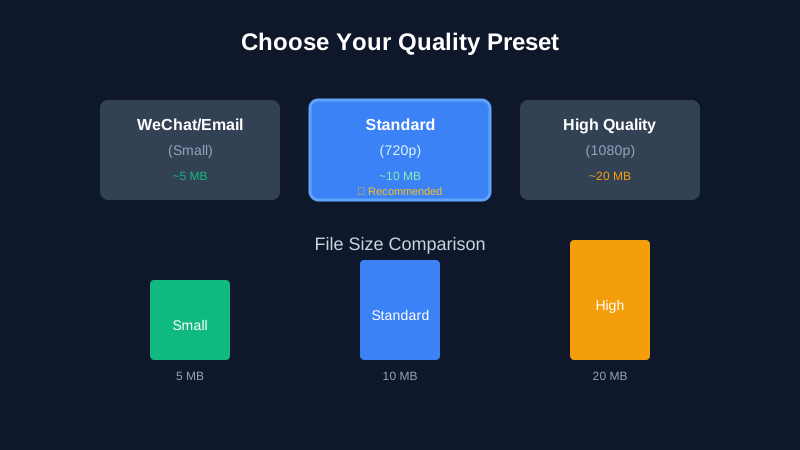
For most clips, I start with 720p Standard. It is the safest middle ground.
If the clip is headed to chat apps or email, I switch to the smaller preset first. If the clip is headed to a client who will watch on a large display, I keep 1080p and lower bitrate more carefully.
This is also where our WhatsApp compression guide becomes useful. The logic is the same, but the limits are stricter.
Mistakes that waste time
Do not compress the same video three or four times in a row. Each extra pass can make the picture worse.
Do not assume "same format" means "same size." Re-encoding an MP4 with smarter settings can still make it much smaller.
Do not keep the source at 60 fps if the scene is just a talking head or a screen recording. Lower motion needs less data.
Pro Tip: If your goal is "looks clean on a phone," 720p MP4 beats oversized 4K almost every time because it actually gets delivered and watched.
The clean finish
Once the conversion ends, download the new file and check size before you resend it.
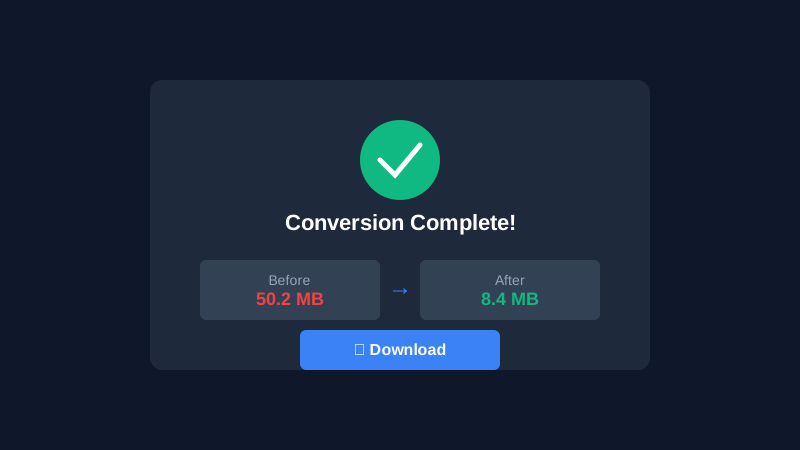
That small habit saves one extra failed upload and a lot of irritation.
You can do all of this in the browser without an install, without a watermark, and without handing the file to a stranger's server.
Meta Description
Need to send a big video fast? Learn the safest way to compress clips for email, WhatsApp, and Discord without harsh quality loss on mobile.