HEIC to JPG Without Uploading: The Private Fix iPhone Users Need in 2026
If a portal, Windows app, or older device keeps rejecting your iPhone photos, this guide shows the safest way to turn HEIC into JPG locally.
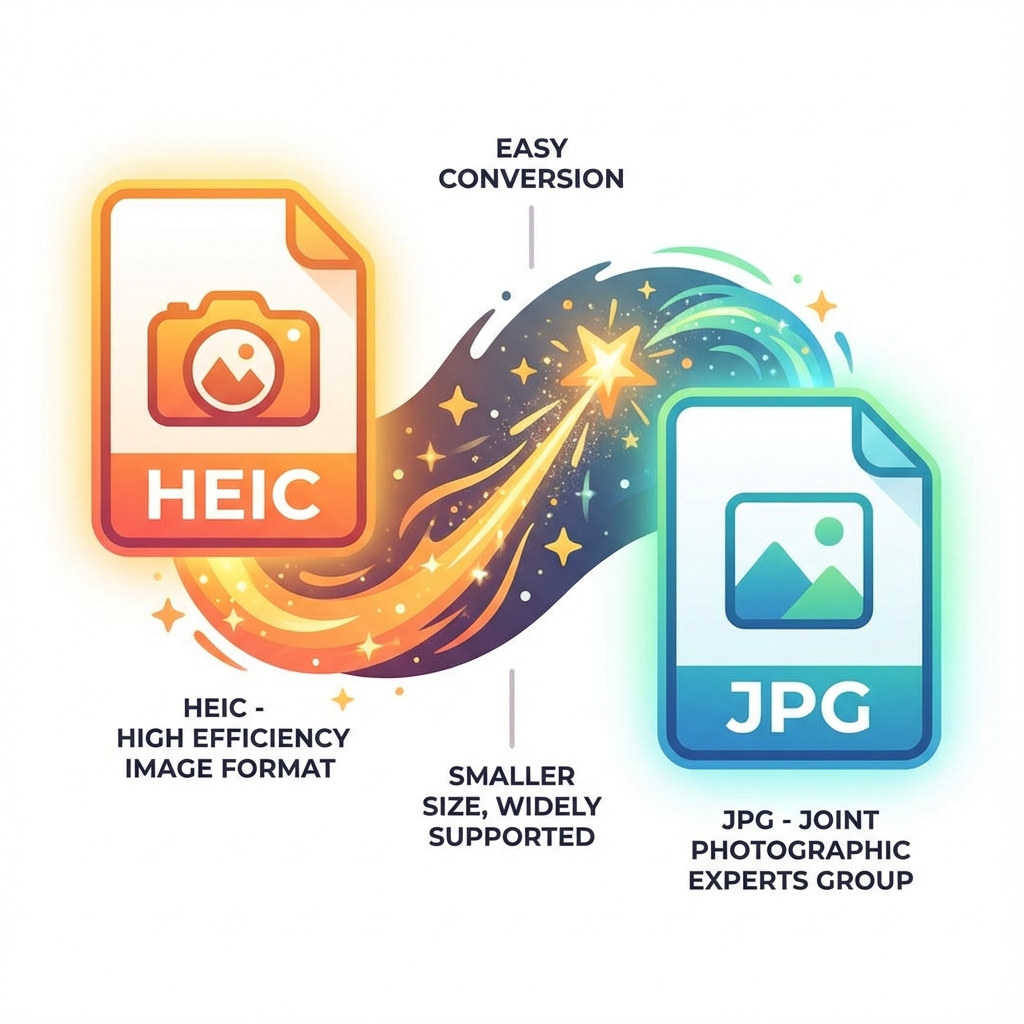
3 SEO title ideas
- 3 Reasons HEIC Still Breaks Windows Uploads in 2026
- 5 Smart Ways to Convert HEIC to JPG Without Risking Privacy
- 7-Minute Fix for iPhone HEIC Photos That Websites Reject
Why this guide converts
Every post on Media Hub is built around one job: helping people fix a file problem fast, without handing private files to a random upload service.
You will see practical limits, real mistakes, and the exact local workflow that fits the tool.
Your iPhone photo looks perfect until the upload form says "file type not supported." That moment is when HEIC stops feeling efficient and starts feeling expensive. The fix is simple: convert locally, keep the image private, and send a JPG only when compatibility matters.

Why HEIC exists and why people still hate it
Apple uses HEIC because it saves storage while preserving quality. That part is smart.
The friction shows up later. Older Windows workflows, legacy upload systems, and plenty of office tools still expect JPG first.
| Format | What it does well | Where it often breaks | Safe fallback | | --- | --- | --- | --- | | HEIC | Smaller files, strong quality | Web forms, Windows tools, older Android apps | JPG | | PNG | Great for graphics and transparency | Larger files for photos | JPG or PNG | | JPG | Broad compatibility | Larger than HEIC at similar quality | Default delivery format |
Three real moments that made me stop using upload-first converters
I once tested a batch of 26 iPhone photos for a visa form on a Windows laptop. The images were fine on the phone, but the portal refused every HEIC file. A local HEIC-to-JPG pass fixed the entire batch in one go.
Another time, I opened a family photo on a borrowed PC and immediately hit the classic "you need an extension" wall. That was a reminder that compatibility problems rarely happen on your own device. They happen on someone else's.
The third moment was privacy. I was converting personal documents and realized an upload-first site was asking me to trust its deletion policy with passport pages and receipts. That is not a trade I want to make.
Pro Tip: If the photo contains IDs, invoices, or family pictures, local conversion is not just faster. It removes the biggest privacy risk in the whole workflow: the upload.
The workflow that stays private
Open the HEIC to JPG tool. Drop in the photos. Download the JPGs.

That is the whole job for most people.
If you are cleaning up a mixed folder, the format explorer helps when HEIC is only part of the problem and you also need WebP, PNG, or AVIF support.
What I check before I export
I look at the destination first.
If the file is going into a school portal, HR form, or government upload, I choose JPG. Those systems usually care more about compatibility than micro-optimizing storage.
If I need transparency, I use PNG instead. If I am just sending a normal photo to a friend, HEIC can stay HEIC.
That is also why our broader iPhone compatibility guide focuses on the handoff stage, not just the format itself.
Pro Tip: Convert only the copies you plan to share. Keep the HEIC originals archived. That way you keep the storage benefit and still deliver a universally open file.
The result you actually want
A good HEIC workflow is not about chasing the smallest file. It is about sending something that opens everywhere on the first try.
That is why a local browser tool is the cleanest answer. No install. No queue. No mystery server.
Meta Description
Convert iPhone HEIC photos to JPG locally, keep private images off random servers, and fix upload errors on Windows, Android, and web forms.